
CONNECT now gives you more flexibility when sending text messages!
You can now send your message directly as a standard SMS text message, making it easier for parents and staff to see important information right from their phone.
Prefer the traditional CONNECT format? You can still send a text containing a link to a full Multimedia Message. We've also added a message preview, character counter, and the ability to send yourself a test text before sending your message to recipients.
This guide will walk you through both options.
Which Option Should I Use?
Use SMS Text Message when: You have a short, time-sensitive message that recipients can read entirely from their text message.
Use Multimedia Message + Text when: You have a longer announcement, formatted content, images, attachments, or additional information that recipients can access through a link.
Sending an SMS Text Message
From CONNECT, select Send General Message or Send Emergency Message to begin creating your message.
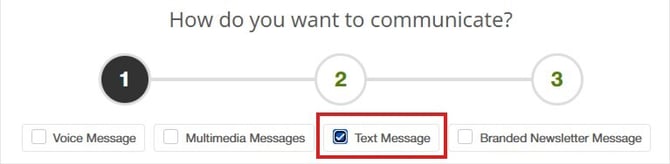
Under How do you want to communicate?, select Text Message.
Text Message Options
We'll now go over the basic functionality of the SMS screen.
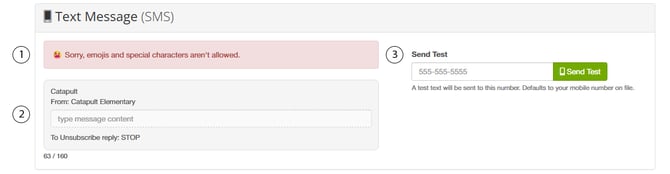
1. Message Requirements
To help maximize the number of characters available for your SMS message, emojis and certain special characters are not supported. These characters can use additional space and reduce the overall length available for your message.
The notice at the top of the SMS section is always displayed as a reminder of this limitation.
2. Message Preview
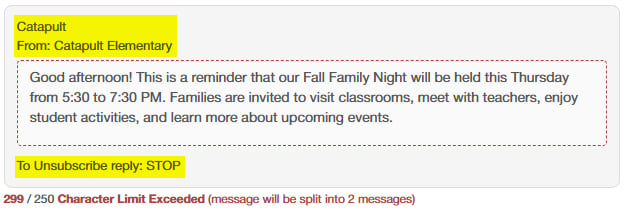
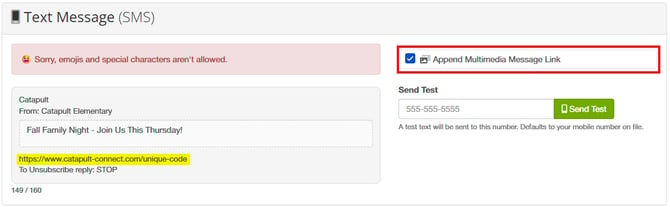
Enter your text message directly in the Message Preview. The preview shows exactly what will be included in the SMS, including the sender information and required unsubscribe instructions.
The character count below the preview keeps track of the total length of your message. A standard SMS message allows up to 160 characters. If your message exceeds that length, CONNECT will let you know that it will be split into two messages. Most modern phones will automatically display the segments together as a single conversation.
CONNECT will prevent additional text from being entered once the maximum character limite has been reached.
3. Send a Test Message
Want to see exactly how your message will look on a phone before sending it? Enter a mobile number and select Send Text. (Disclaimer: Links in preview texts expire after a short amount of time).
If a mobile number is associated with your CONNECT account, it will be entered automatically. You can also enter another valid U.S. mobile number.
The test message lets you review the SMS just as a recipient will receive it before sending your final message.
Sending a Multimedia Message by Text
Need more room for you message? You can still use SMS to send recipients to a link to a full Multimedia Message. This is a great option for longer announcements, formatted content, images, attachments, or messages being shared across multiple communication channels.
To use this option, select both Multimedia Messages, and Text Message under How do you want to communicate?
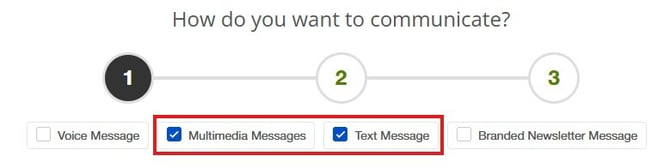
Create your Multimedia Message as you normally would, including a subject and message content. Be sure to select at least one Multimedia Message option, such as Email, Website Announcement, Facebook, or App Push Notification, as one is required to use this messaging method.
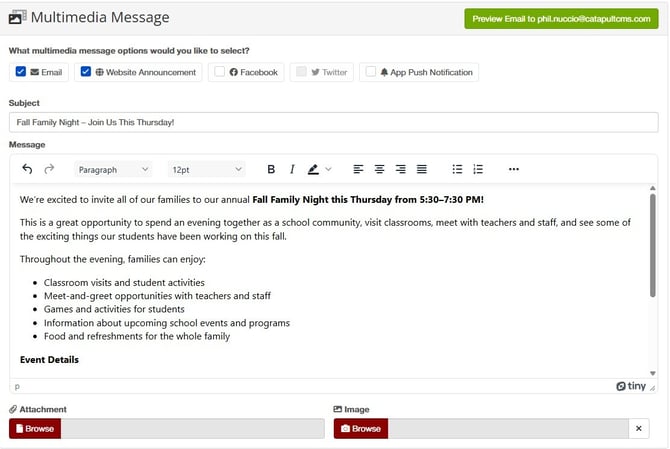
Once your Multimedia Message is complete, scroll down to the Text Message (SMS) section.
Enable Append Multimedia Message Link. CONNECT will automatically add a link to the full Multimedia Message to you SMS preview. The link is included in the character count, so you’ll always be able to see how much room remains for your text.
Since recipients can select the link to view the full message, we recommend keeping the SMS portion short and focused on the most important information.
That’s all there is to it! You can complete the next steps as normal.