
Accessing School Manager
- Log into CatapultCMS.
- From the left-hand navigation, select School Manager.
- Choose the school you want to edit.
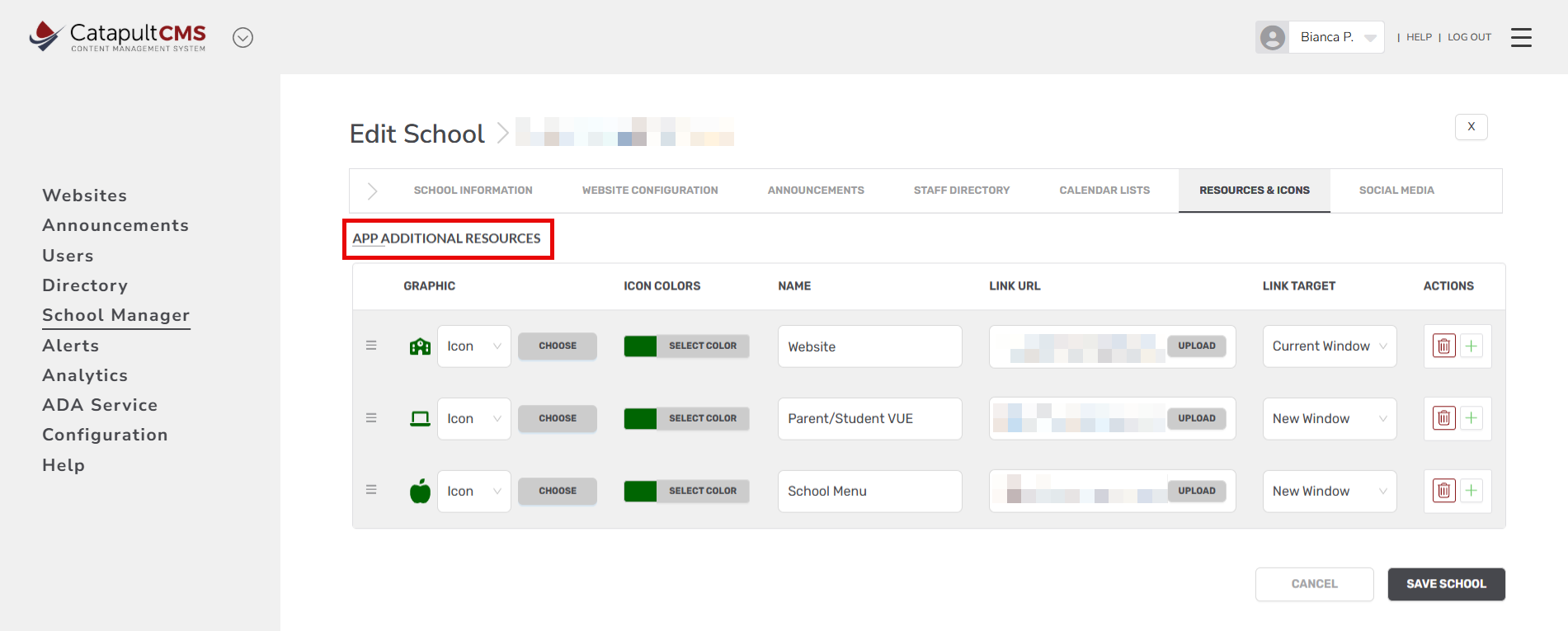
- Navigate to the tab labeled Resources & Icons.
Editing App Additional Resources
Inside the Resources & Icons tab, locate the section titled App Additional Resources.
This is where you can configure what appears in the mobile app.
Each resource row includes:
- Graphic – Choose an icon to represent the resource.
- Icon Colors – Customize the icon and background color.
- Name – The label users will see in the app (e.g., “School Menu”).
- Link URL – The webpage or tool the resource should open.
- Link Target – Choose whether the link opens in a new window or the current window.
- Actions – Add or delete resources.
How to Update an Existing Resource
- Locate the resource you want to modify.
- Update any of the following fields:
- Graphic: Click Choose to upload a custom graphic or select from built-in icons.
- Icon Colors: Click Select Color to apply custom colors.
- Name: Type the label you want users to see in the app.
- Link URL: Paste the web address you want the resource to open.
- Link Target: Select Current Window or New Window.
- Click Save School at the bottom right to publish your updates.
How to Add a New Resource
- Click the + button in the Actions column.
- A new blank row will appear where you can:
- Select an icon
- Choose icon colors
- Enter a name
- Provide a URL
- Select link target
- Click Save School.
How These Resources Appear in the App
Any resources added to this section will display in the mobile app under the school’s Additional Resources area. Icons and colors help families quickly locate important tools.
Tips & Best Practices
- Keep names short and clear (e.g., “ParentVUE”, “Lunch Menu”).
- Use branded icon colors for consistency across schools.
- Confirm all URLs are correct before saving.
- Avoid overloading users—4–8 resources is ideal.