
Watch the Staff Directory Tutorial
Automatic Nightly Imports
If your district can export staff information automatically from a system such as:
-
HR software
-
Active Directory
-
Student Information System (SIS)
-
Any automated personnel database
…then you may not need to manually update your Staff Directory at all.
With nightly imports:
-
New staff members appear automatically
-
Departed staff members are removed
-
Changes (names, titles, extensions, etc.) update on their own
Important Note About Data Quality
Automated imports only work well if your dataset is clean.
If your internal system contains:
-
Old or inactive users
-
Duplicate records
-
Incorrect school assignments
…those issues will appear in your public directory.
If needed, you can export your dataset once, clean it manually, and upload the corrected version to start fresh.
About the Required CSV Files
The Catapult Staff Directory relies on two CSV files:
site-import.csv
Contains district or school site information (site names, phone numbers, addresses).
staff-import.csv
Contains staff-specific information (names, email addresses, titles, phone extensions, etc.).
Your Project Manager may have provided these files during implementation, but you can download fresh copies at any time.
How to Fill Out Your CSV Files
These files must follow specific formatting rules to work correctly in CatapultCMS.
Do Not Modify Field Names
You cannot change:
-
Field headings
-
Spelling
-
Capitalization
Changing headers will break the import.
Ensure Site Names Match Exactly
The key relationship between the two files is:
These two values must match exactly.
Examples of mismatches that will break the import:
-
“Bidwell Jr” vs. “Bidwell Junior High”
-
“Central Office” vs. “District Office”
The system uses this exact match to connect each staff member to the correct school.
If names do not match, those staff members will not appear in the directory.
Global Imports vs. Single Site Imports
When uploading files, you will see two tabs:
-
Global Import
-
Single Site Import
Global Import
A global import updates the entire district directory at once using your CSV files.
Because this affects every site, use this option with caution.
Important Warning:
A global import has the potential to overwrite or clear out your entire directory if the CSV files are incomplete or incorrect.
Before running a global import:
-
Always click Download Current Staff to save a backup of your existing data.
-
Double-check that your CSV files contain all the staff and all the sites you intend to keep.
-
Confirm that header names and site names are exact.
If something goes wrong, your backup CSV file is the only way to restore your previous directory.
Single Site Import
Use this method when updating only one school or location without affecting the rest of the district directory.
This is helpful when:
-
A single school wants to refresh staff info
-
Only one site has changes
-
You want to avoid risking districtwide updates
Single Site Import is safer for small or isolated changes because it does not modify other sites.
How to Upload CSV Files Into CatapultCMS
You can upload updated CSV files directly through the Dashboard.
Steps to Upload
-
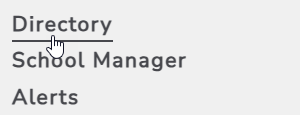
Click Directory in the left-hand menu.
-
Open Staff Directory Settings.

-
Click Files to open the Manage Files panel.
-
You’ll see two upload options:
-
Site Upload
-
Staff Upload
-
-
Next to Site Upload, click Upload.
-
Select your site-import.csv file from your computer.
-
Click Upload.
-
Repeat the process for Staff Upload using staff-import.csv.
Your directory will update as soon as both files are uploaded successfully.
Displaying Your Directory on a Website Page
Once your CSV files are uploaded, you can add the Staff Directory to any page.
Keep Learning:
See Staff Directory Element: Add Directory to a Catapult Page.