
How to Create a New Google Calendar
1. Open Google Calendar
- Go to google.com and sign in.
- Click the 9-dot Google Apps icon in the top-right corner.
- Select Calendar.
2. Create a New Calendar
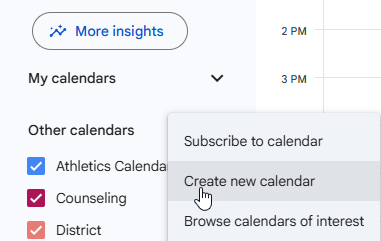
- In the left sidebar, find Other calendars and click the (+) button.
- Select Create new calendar.
- Enter a Name, Description, and the correct Time Zone.
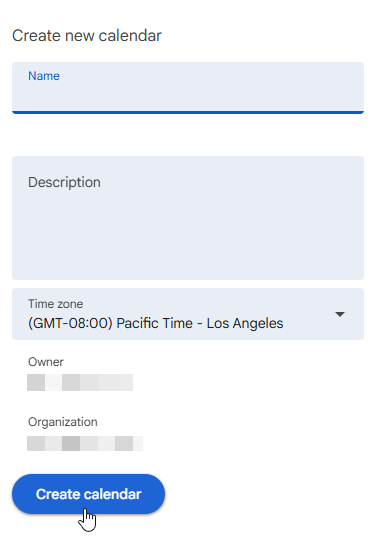
- Click Create calendar.
Your new calendar will appear under My calendars.
3. Update Calendar Settings (Required for Catapult)
- Find your new calendar under My calendars.
- Click the three dots next to the calendar name.
- Select Settings and sharing.
- Scroll to Access permissions.
- Check Make available to public.
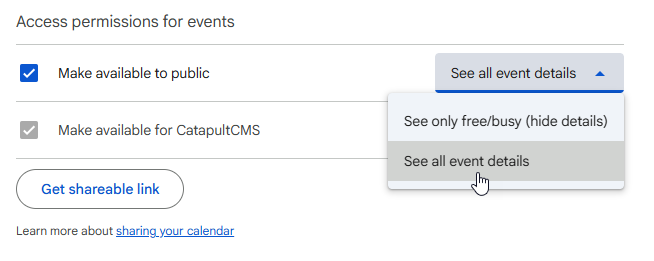
- Make sure See all event details is selected.
Important: CatapultCMS cannot sync private calendars. Only calendars you intentionally make public will sync.
Share Your Calendar (Optional)
If others need to add or edit events, you can share access with them.
Share the Calendar Link
- In the Settings and sharing window, click Get shareable link.
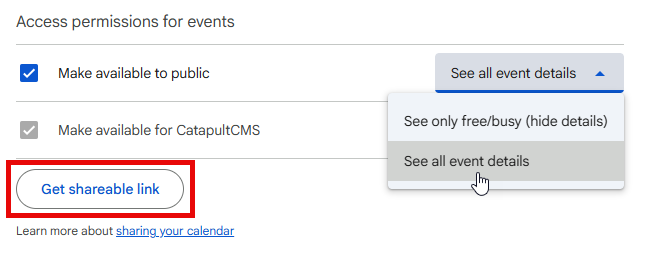
- Copy the link that appears.
Share With Specific People
- Scroll to Share with specific people.
- Click Add people.
- Enter the email address of the user you want to share with.
- Choose the appropriate permission level (such as Make changes to events).
- Click Send.
Anyone you share the calendar with can now add or update events as needed.
Learn more about sharing your calendar